Text, Images and Exhibits
Text formatting
You can format the text of questions, answer options, explanations, the test description and case study pages. The formatting buttons are on the main window's toolbar and apply to the field where the cursor is.

| Button | Action |
|---|---|
| Font Style | Regular font (Normal) or monospaced (Monospaced) — handy for code and commands |
| Font Size | Text size: Large, Normal, Small |
| B / I / U | Bold (Ctrl+B), italic (Ctrl+I), underline (Ctrl+U) |
| Image | Insert an image from a file |
| Alignment | Left, center, right, justify |
| Lists | Numbered and bulleted list |
| Indents | Increase or decrease indent |
| X₂ / X² | Subscript and superscript (for example, H₂O, x²) |
| Color | Text color. More Colors... opens the full palette |
Images
Inserting
- The insert image button on the toolbar — choose a
.jpg,.jpeg,.pngor other image file. - Paste from the clipboard (
Ctrl+V), for example, a screenshot.
Image actions
Right-click an image in the text:
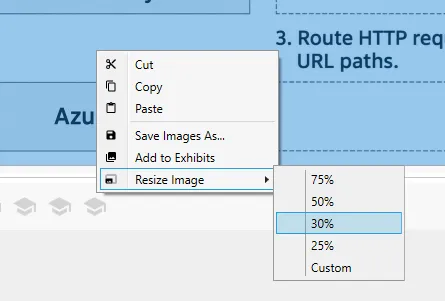
- Cut / Copy / Paste — cut, copy, paste;
- Save Images As... — save the image to a
.jpgor.pngfile; - Add to Exhibits — add the image to the question's exhibits;
- Set as Answer Background — use the image as the basis for the answer (for Hot Point, Hot Area and Drag & Drop questions);
- Resize Image — shrink the image to 25%, 30%, 50% or 75%. Custom opens a window where you set the scale with a slider.
All images in the test
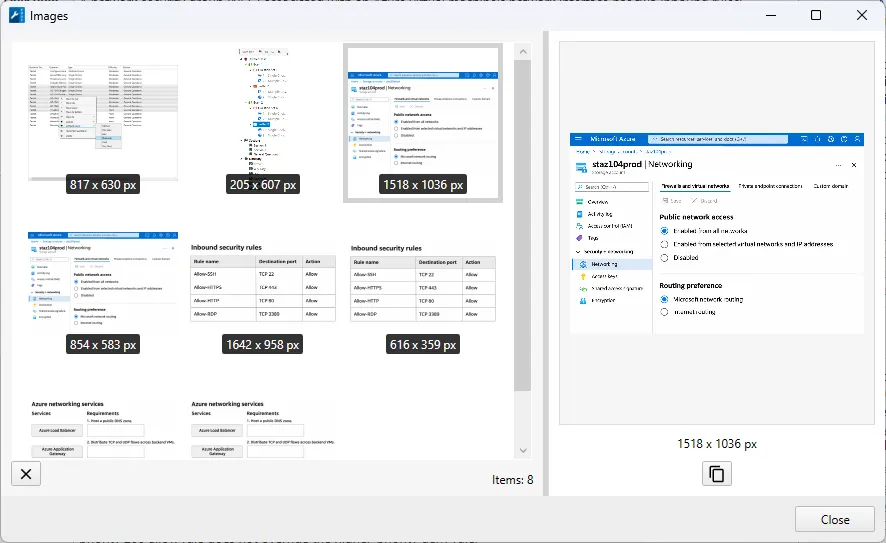
Document → All Images... (Ctrl+Alt+F) shows all images in the document: their size and the number of images (Items).
- Double-click an image to open the question where it is used.
- The copy button copies the image to the clipboard.
- The delete button deletes the selected images.
This window helps you find oversized images that increase the file size.
Exhibits
Exhibits are additional materials for a question: network diagrams, tables, command output, documentation excerpts. In the test, the candidate opens them separately from the question text, so the question stays compact.
- Add Image in the Exhibits block — add an exhibit image from a file.
- Add to Exhibits in an image's context menu — move an image from the text to the exhibits.
- Right-click an exhibit: Copy — copy, Delete — delete.
A testlet has its own exhibits on the Exhibits tab. They belong to the whole case rather than to a single question.
