Task automation for Windows

Turn repetitive actions into a reusable workflow

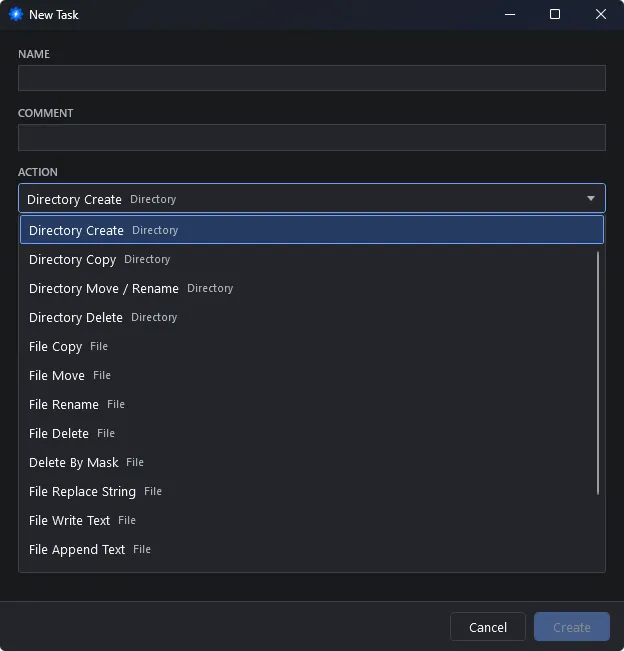
Automator helps you build clear sequences of actions without writing code. Copy and rename files, create folders, work with ZIP archives, and launch external applications. Configure a workflow once, then run the entire process with a single click.

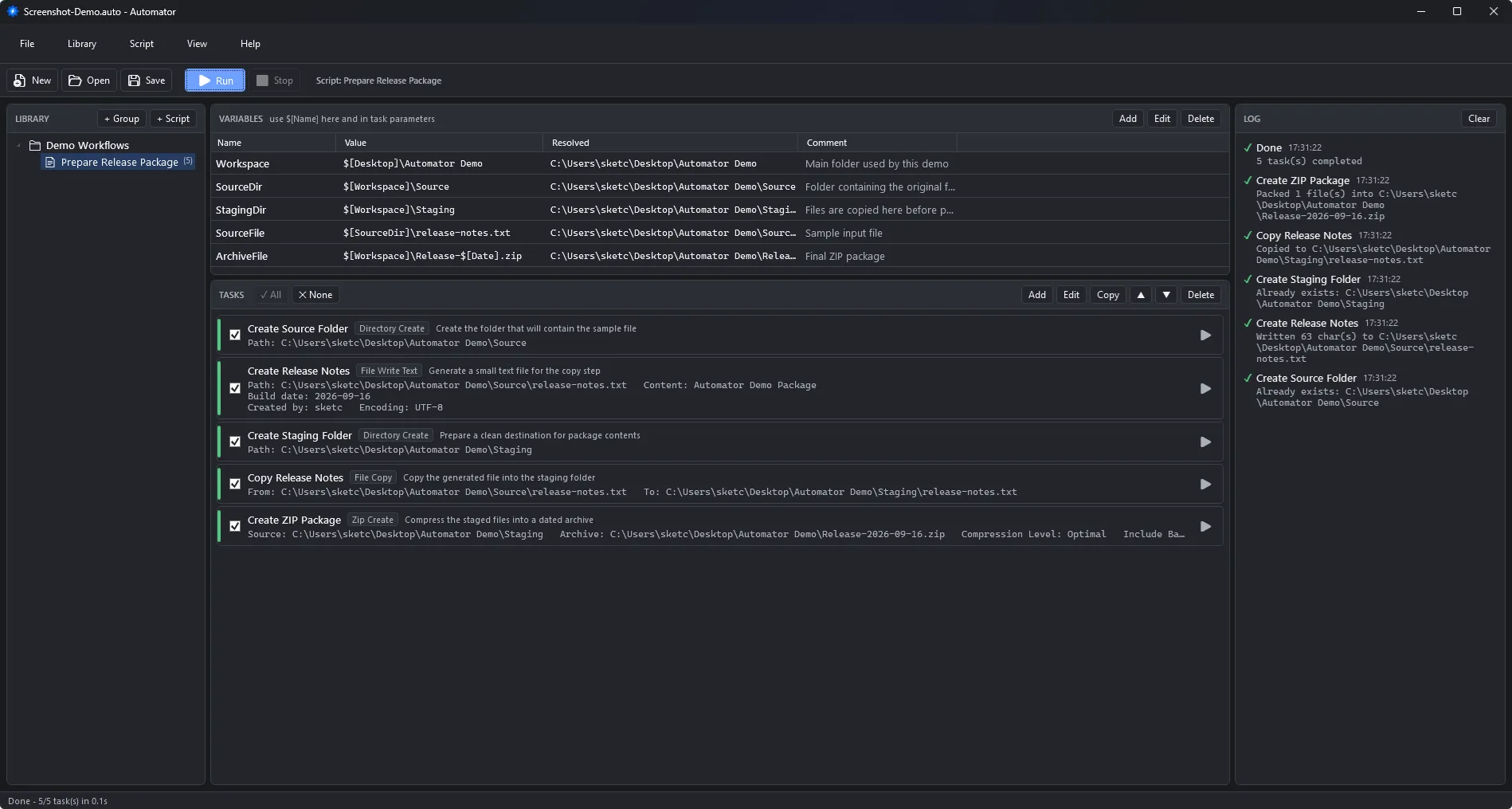
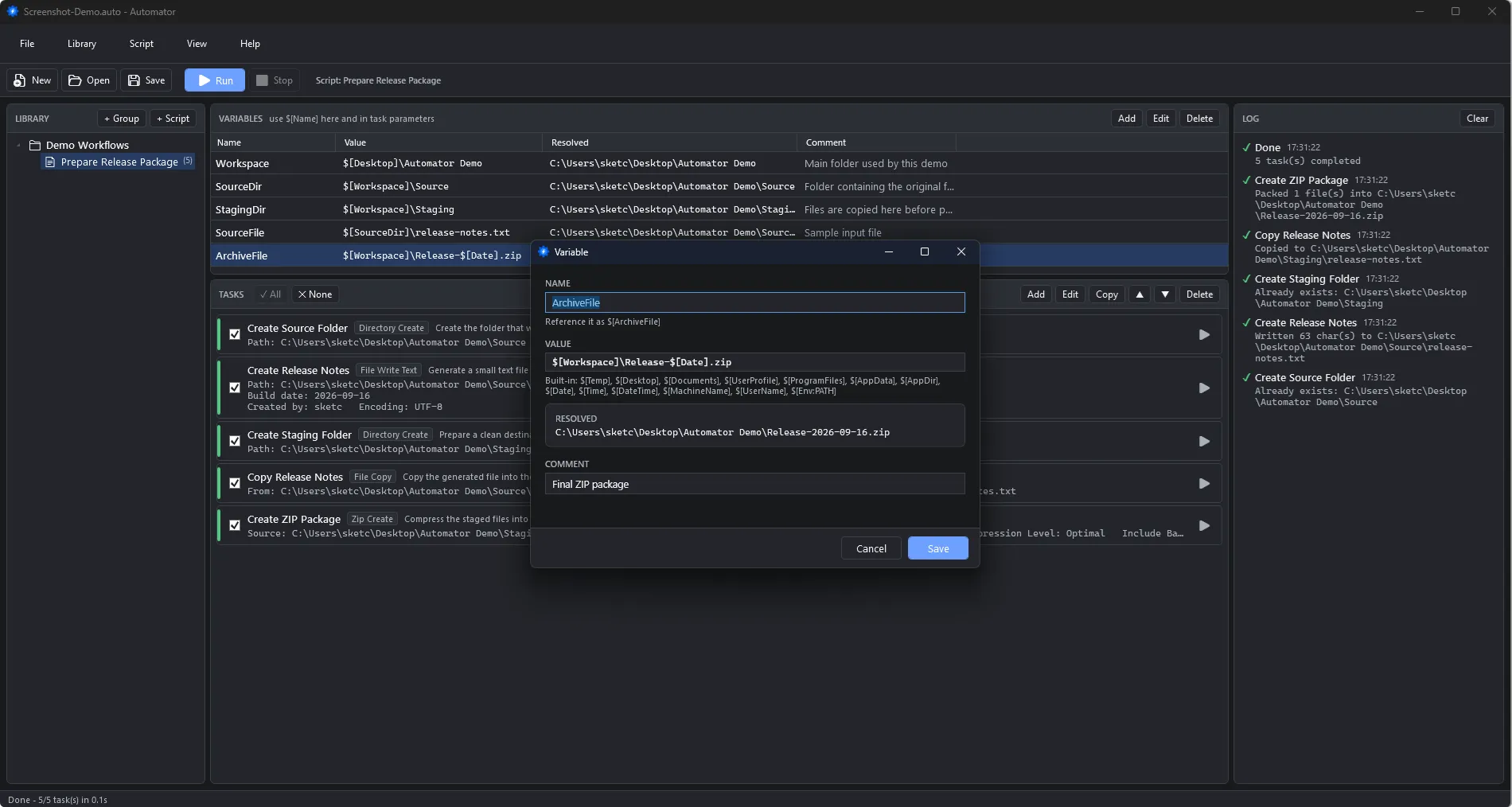
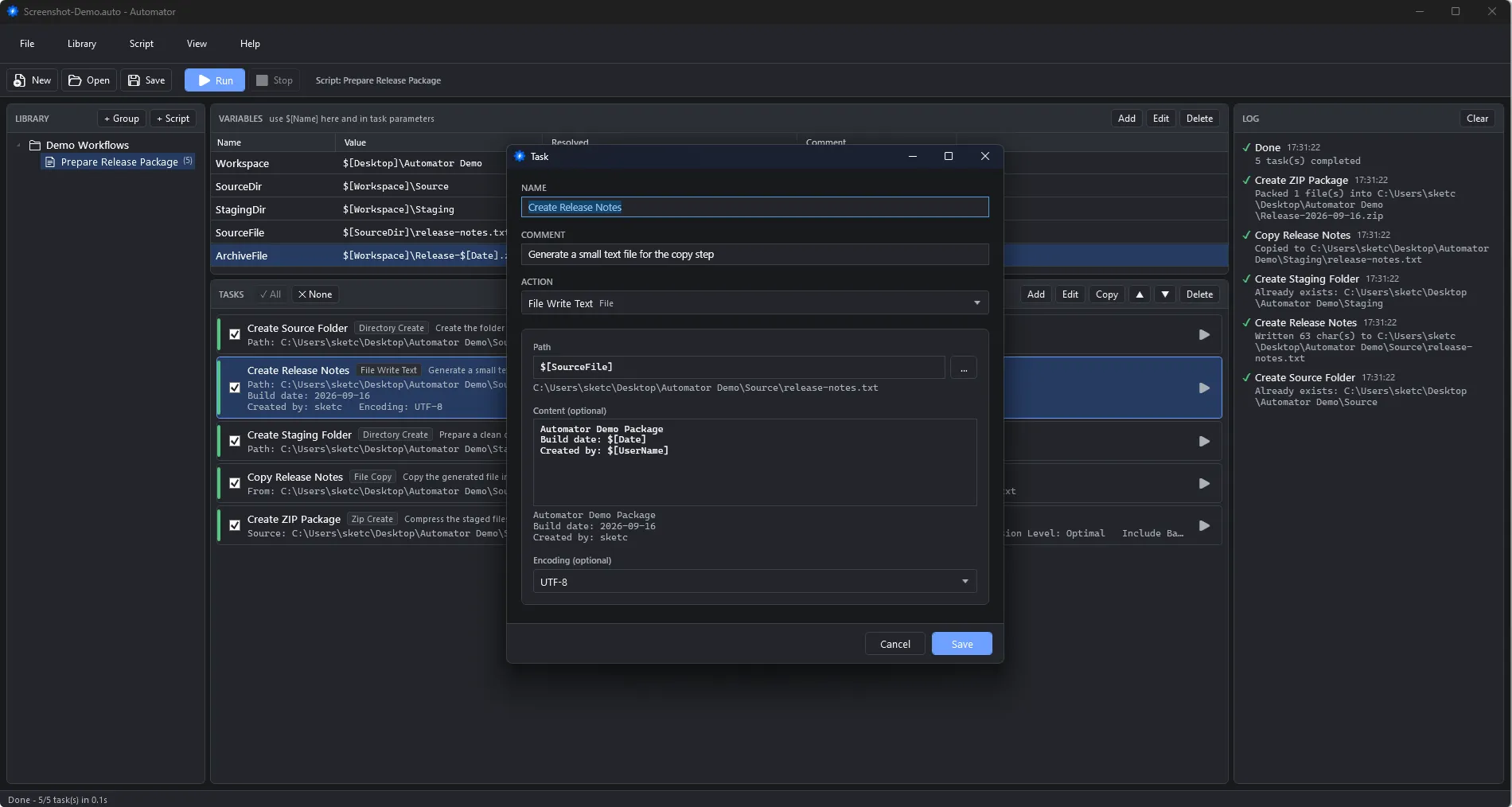
Automator for Windows - workflow library, variables, task list, and execution log in one window

Everything you need for everyday automation

Automator combines workflow setup, execution, and validation in one focused window. You no longer need to remember a long sequence of steps or repeat it manually every time.

Build from ready-made actions

Add tasks in the required order, disable individual steps, duplicate them, and move them up or down.

Reuse values with variables

Define paths and names once, then use them across every task in the workflow.

Review every run

Task statuses, overall progress, and a detailed log show what was done and where a problem occurred.

Automator workflow library with groups and an ordered list of tasks ready to run
Visual workflows

Automate the process, not just one action

Combine multiple operations into one sequential workflow. Prepare folders, copy source materials, update a text file, create an archive, and run the final command. Automator executes enabled tasks in order and stops the sequence when an error occurs, so a failed step never goes unnoticed.

  • Groups and workflows in one organized library
  • A clear top-to-bottom execution order
  • Enable or disable individual tasks
  • Duplicate and reorder steps
  • Run the entire workflow or only the selected task
Files and folders

Let Automator handle routine file operations

Create, copy, move, rename, and delete files and directories. For cleanup workflows, define a file mask - for example, remove every .tmp file from a selected folder and its subfolders. Where supported by the selected action, required parent folders are created automatically.

  • Create directories and recursively copy complete folder trees
  • Move or rename folders
  • Copy, move, rename, and delete files
  • Delete files by mask, with optional recursive search
  • Work with complete directory structures, not only individual files
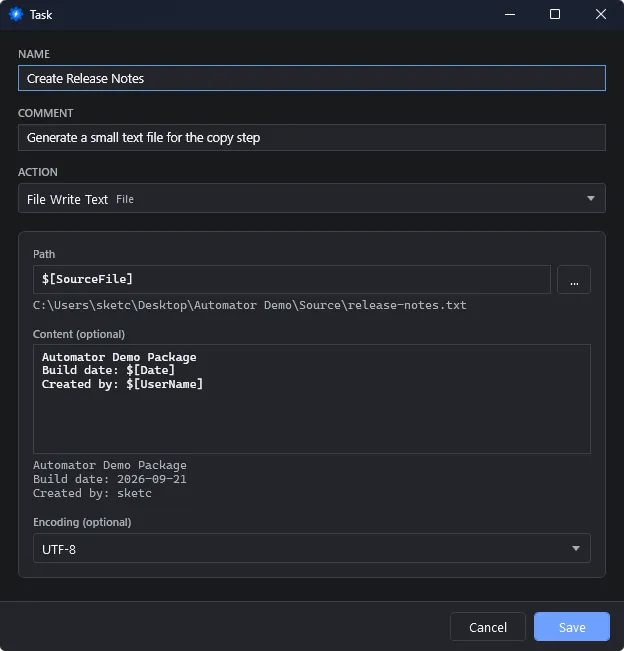
Automator task editor configuring a file copy operation with source and destination paths
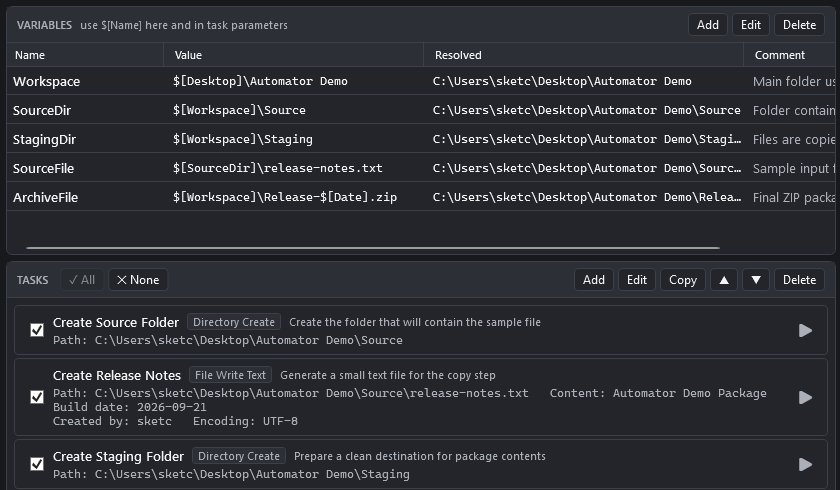
Automator variables table with names, values, and resolved results
Variables

Change a value once and update the entire workflow

Use variables in paths, command-line arguments, and text parameters. Variables can reference other variables, and the resolved result is displayed before execution. Automator detects unknown names, duplicate definitions, and circular references so you can correct a problem before any file operation begins.

  • Custom variables for each workflow
  • Nested values using the $[Name] syntax
  • Date and time variables for dynamic file names
  • System folders such as Desktop, Documents, User Profile, and AppData
  • Windows environment values through $[Env:NAME]
  • Resolved-value previews and clear error messages
Text files and archives

Prepare deliverables without switching to another utility

Automator can write and append text, replace strings in existing files, and create or extract ZIP archives. Select the text encoding, compression level, and overwrite behavior directly in the task settings.

  • Write new content or append text to an existing file
  • Replace the first occurrence or every occurrence of a string
  • UTF-8, UTF-8 BOM, UTF-16, and ANSI encodings
  • Create a ZIP archive from a folder or a single file
  • Multiple compression levels
  • Securely extract ZIP archives into a selected directory
Automator task editor creating a ZIP archive with a compression level and an output name built from variables
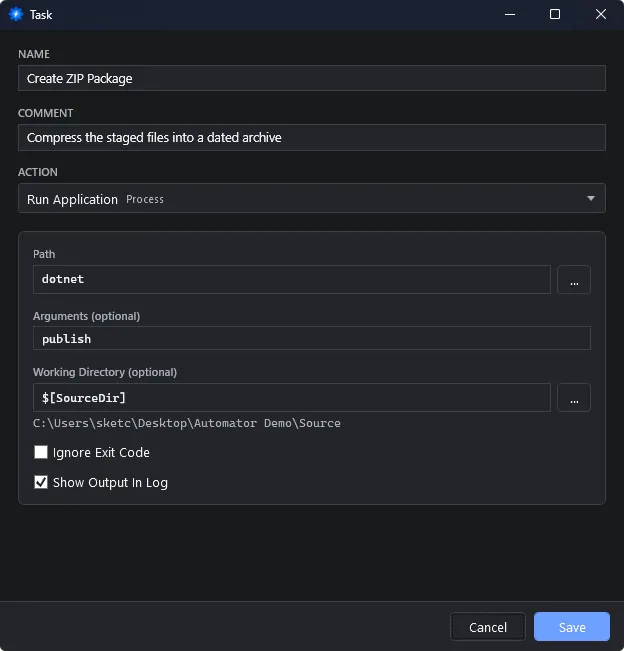
Automator task launching an external application with arguments, working directory, and output capture
Applications and commands

Bring your existing tools into the workflow

Launch applications, command-line tools, and .cmd or .bat files as workflow steps. Pass arguments, define a working directory, and choose whether a non-zero exit code should be treated as an error. Standard output and error messages can be captured in the Automator log.

  • Launch executable files and batch scripts
  • Arguments with variable support
  • Configurable working directory
  • Exit-code handling
  • Capture standard output and error output
  • Stop the launched application together with its child processes
Validation and execution log

Find problems before a run - and understand them afterward

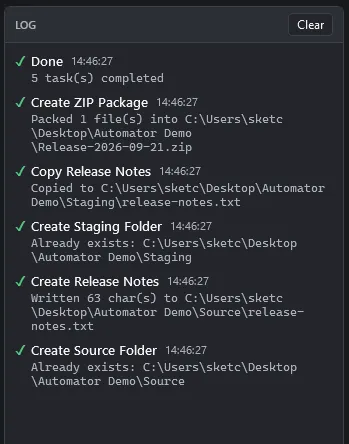
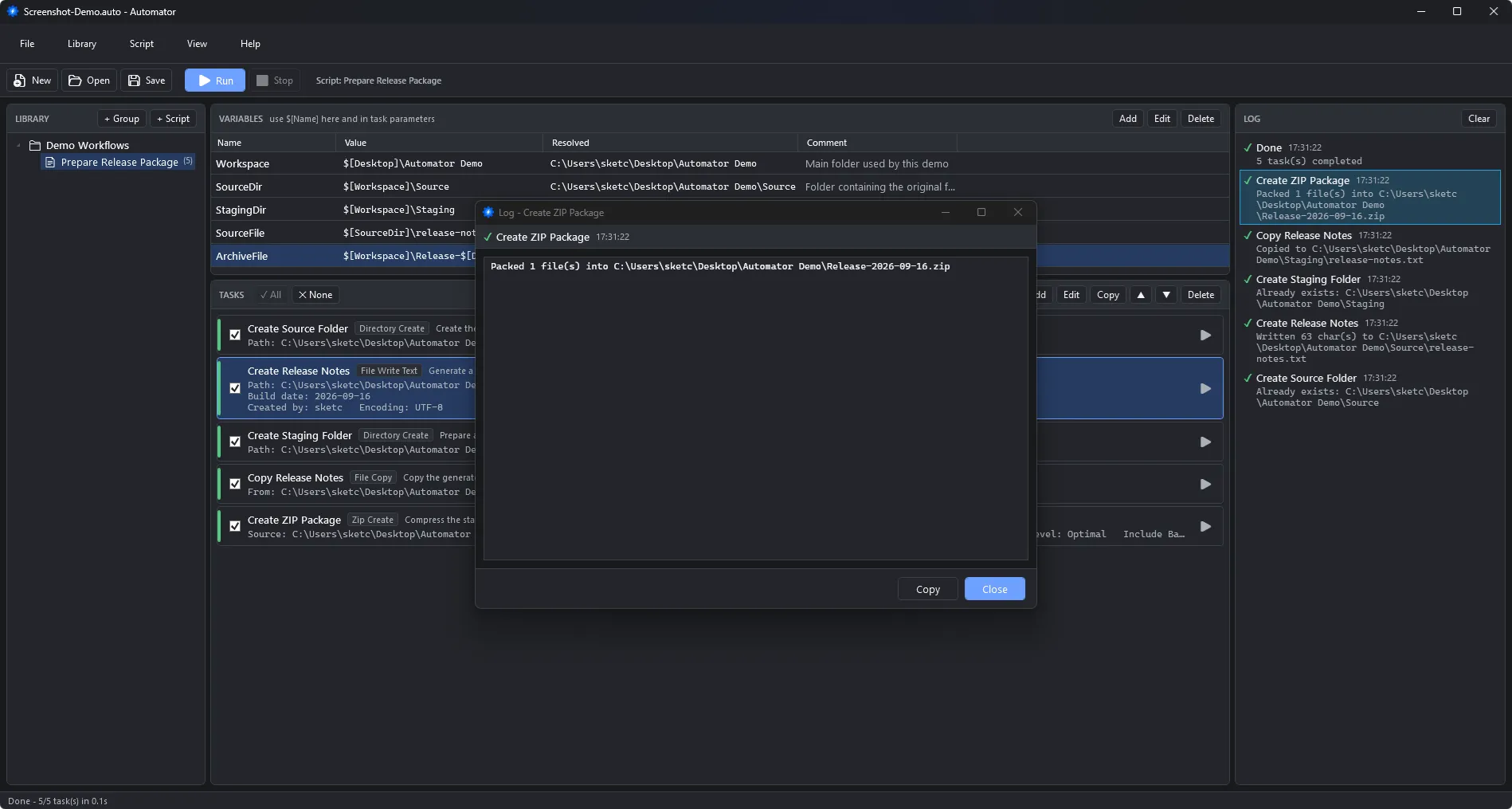
Before execution, Automator validates the workflow and its task parameters. If a required value is missing, a variable is undefined, or an action type is unknown, the problem appears before any operation starts. During execution, follow overall and per-task progress, stop the workflow, and open the details of any log entry.

  • Preflight validation before file-system changes
  • Individual status for every task
  • Overall execution progress
  • Cancel the current workflow
  • Timestamp, result, and explanation for every log entry
  • Open long output in a dedicated detail view
Automator execution log with timestamps, per-task results, and captured command output
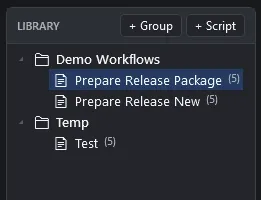
Automator workflow library saved as a portable .auto document with groups for different kinds of work
Portable workflow library

Build a reusable collection of work processes

Organize workflows into groups, give them meaningful names, and save the library in an .auto file. Open the document later, move it to another computer, or share it with a colleague. Automator also maintains compatibility with existing .auto workflows created by the earlier version of the application.

  • Groups for projects, clients, and types of work
  • Rename and duplicate workflows
  • Drag items within the library
  • Open .auto files through Windows file association
  • Compatibility with previously created .auto documents
  • Light, dark, and system themes in one workspace

One tool for many repeatable processes

The same workflow that saves you ten minutes today will save them again every time the task comes back.

Prepare a release

Clean the destination folder, copy the build, write the version number, create a ZIP archive, and run a verification command.

Update a configuration

Copy a template, replace values in a text file, append a service line, and launch the application with the required arguments.

Clean working directories

Delete .tmp, .log, and other intermediate files by mask, remove the old build folder, and recreate a clean directory structure.

Gallery

Interface Screenshots

Take a visual tour through the different panels and dashboards of Automator.

Automator - Main window
Automator - Variables
Automator - Tasks
FAQ

Frequently Asked Questions

No. A workflow is assembled from ready-made actions, and their parameters are completed in a standard form. For more flexible processes, you can use variables and external commands.
The application works with files and folders, writes and updates text files, creates and extracts ZIP archives, deletes files by mask, and launches external applications or commands.
Yes. You can run any task independently without executing the entire workflow. This is useful when configuring a process or troubleshooting a problem.
Automator performs preflight validation. Undefined variables, missing required values, and other problems are displayed before execution begins. If an error occurs during execution, the workflow stops and the details appear in the log.
The workflow library is saved locally in an .auto file. You can back up, move, and open that file on another computer with Automator installed.
Yes. Stop execution with the Stop button or the F6 key. When an external application is running, Automator also terminates the process tree created by that application.
Free Edition

Download Free Version

Completely free for personal and commercial usage. No licenses, sign-ups, or subscriptions required.

Automator

Automate routine tasks with files and folders using GUI and simple commands.

  • Unlimited personal and commercial usage rights
  • 100% features fully unlocked (no limits, no watermarks)
  • Free lifetime updates and security patches
  • Offline-first execution (data stays fully private on your drive)
Download for Windows

Latest Product Updates

Discover new releases, features, improvements, and development updates from Abintrix.

Introducing Muxvero for Windows: Batch Video and Audio Conversion With a Queue You Control
October 6, 2026 Muxvero

Introducing Muxvero for Windows: Batch Video and Audio Conversion With a Queue You Control

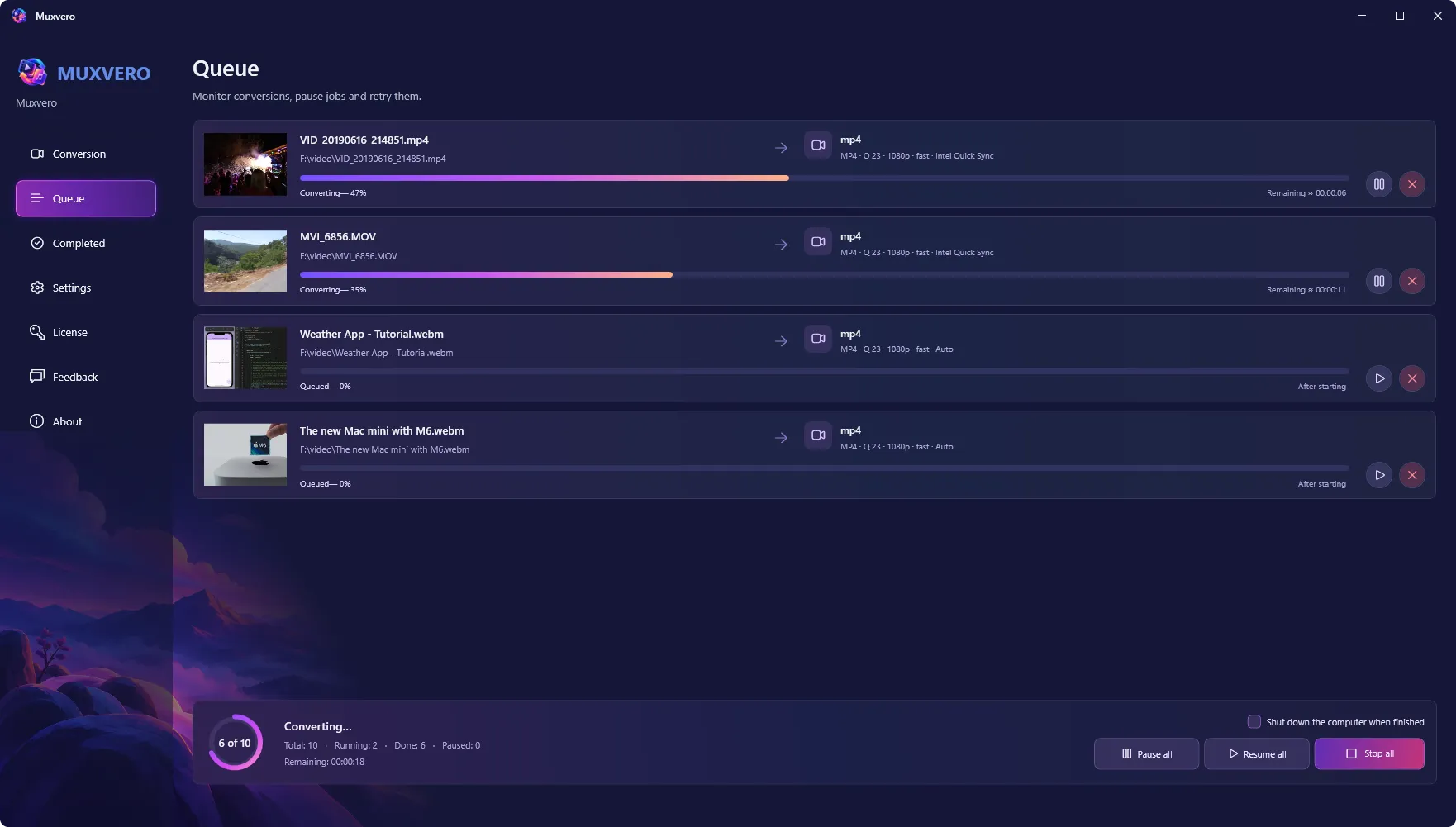
Muxvero converts video and audio in batches on Windows - popular output formats, audio extraction, Intel Quick Sync acceleration, stream copy without re-encoding, and a queue that survives closing the app. Out now, $24.95 one-time.

Read Article
Introducing Checklist Tracker for Mac: Reusable Checklists With a Fresh Copy Every Time
September 23, 2026 Checklist Tracker

Introducing Checklist Tracker for Mac: Reusable Checklists With a Fresh Copy Every Time

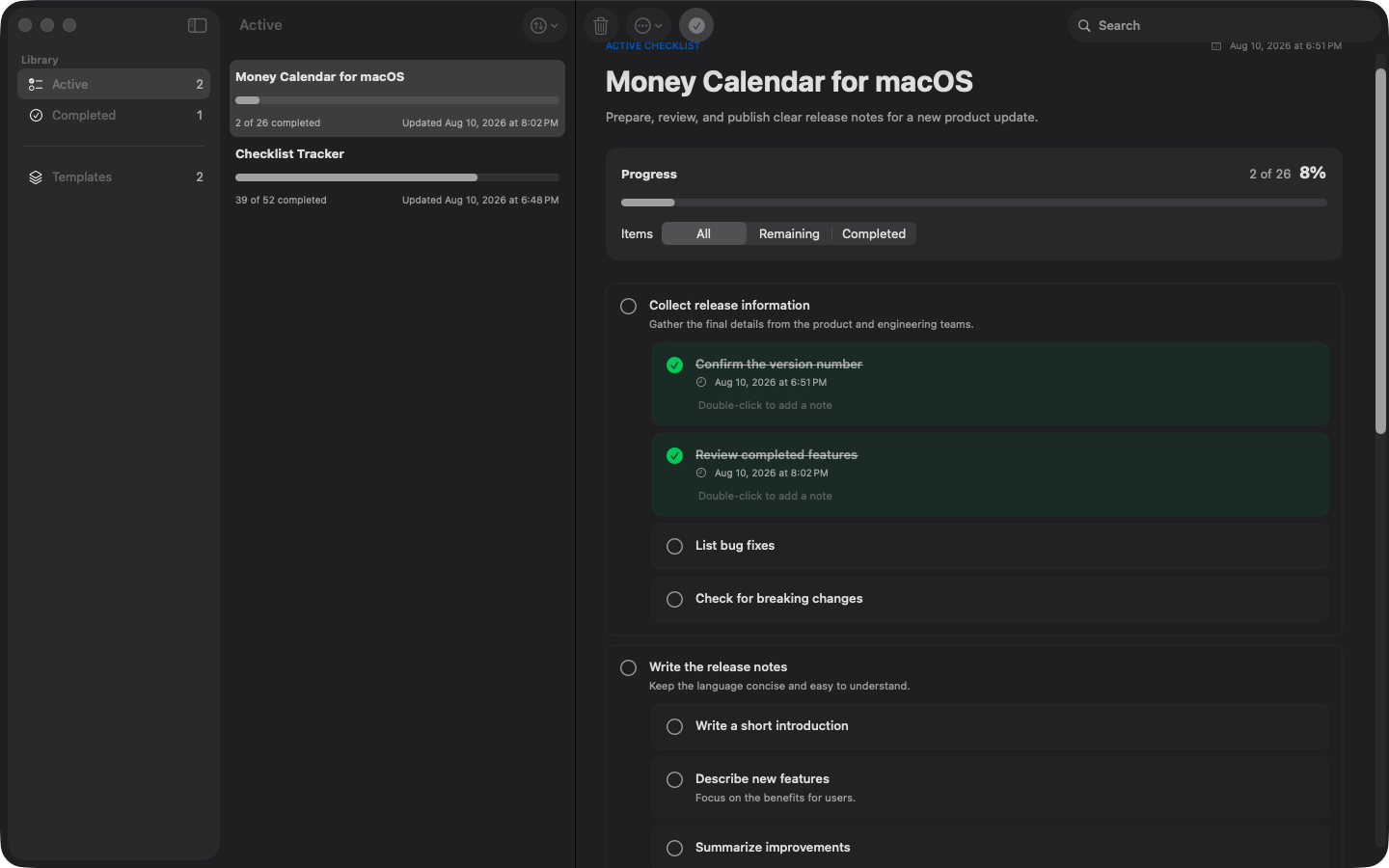
Meet Checklist Tracker for macOS: write a checklist template once, then start an independent run whenever you need it. Unlimited nesting, honest progress, PDF and Markdown export - offline, no account.

Read Article
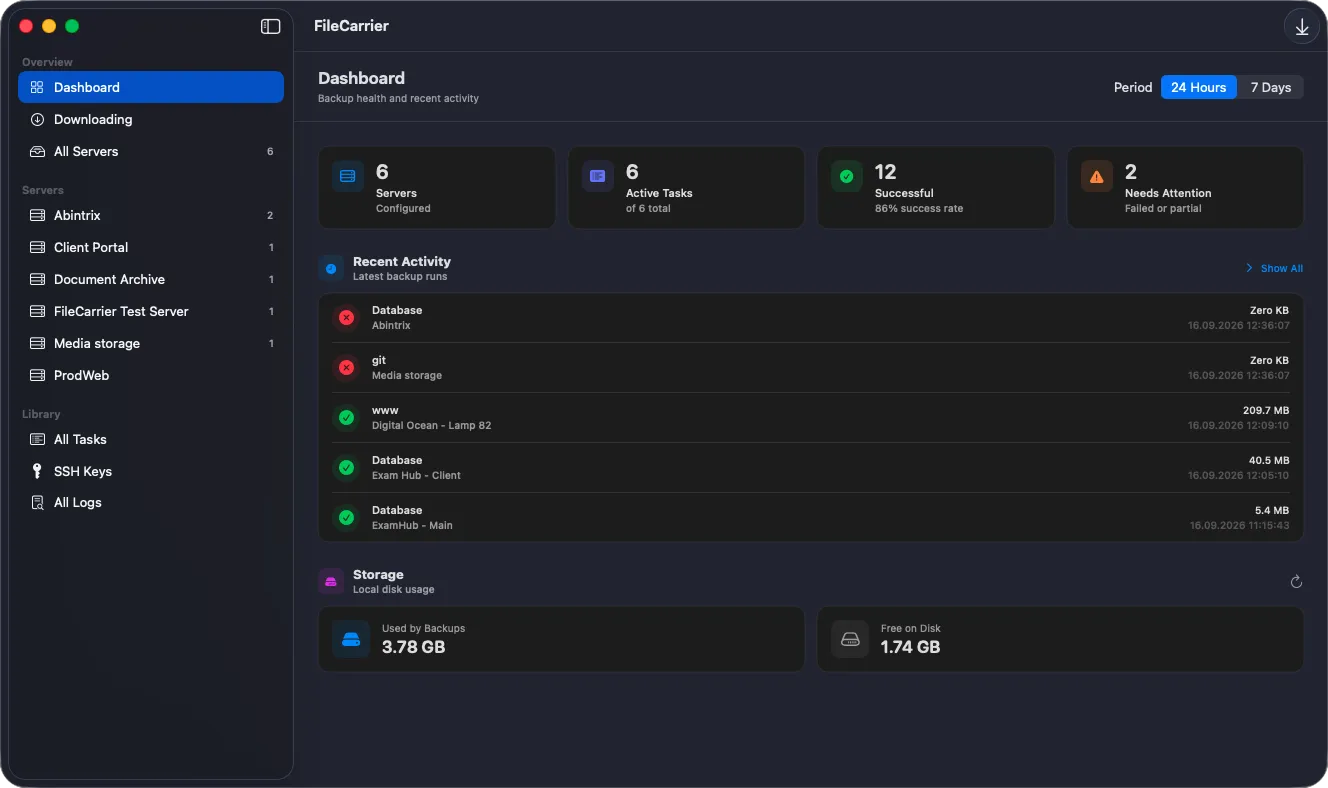
FileCarrier Released: Automated SFTP Backups, Dumps, and Logs for macOS - Without Jenkins or Brittle Scripts
September 16, 2026 FileCarrier

FileCarrier Released: Automated SFTP Backups, Dumps, and Logs for macOS - Without Jenkins or Brittle Scripts

Meet FileCarrier for macOS: automatically download server backups, database dumps, and logs via SFTP on schedule. Menu bar app with zero setup headache.

Read Article