Importing Questions
You don't have to type questions by hand. The application can import them:
| From | With | Details |
|---|---|---|
| Text, RTF, PDF | Import Editor (Ctrl+Shift+I) |
below |
| JSON | Import JSON... (Ctrl+Alt+J) or the JSON / YAML tab in Import Editor |
below |
Another .vcex file |
Add Questions from File... | below |
| PDF, Word, RTF, images — with AI | AI chat | AI Chat |
Import Editor
Open it via File → Import Editor..., the toolbar button or Ctrl+Shift+I.
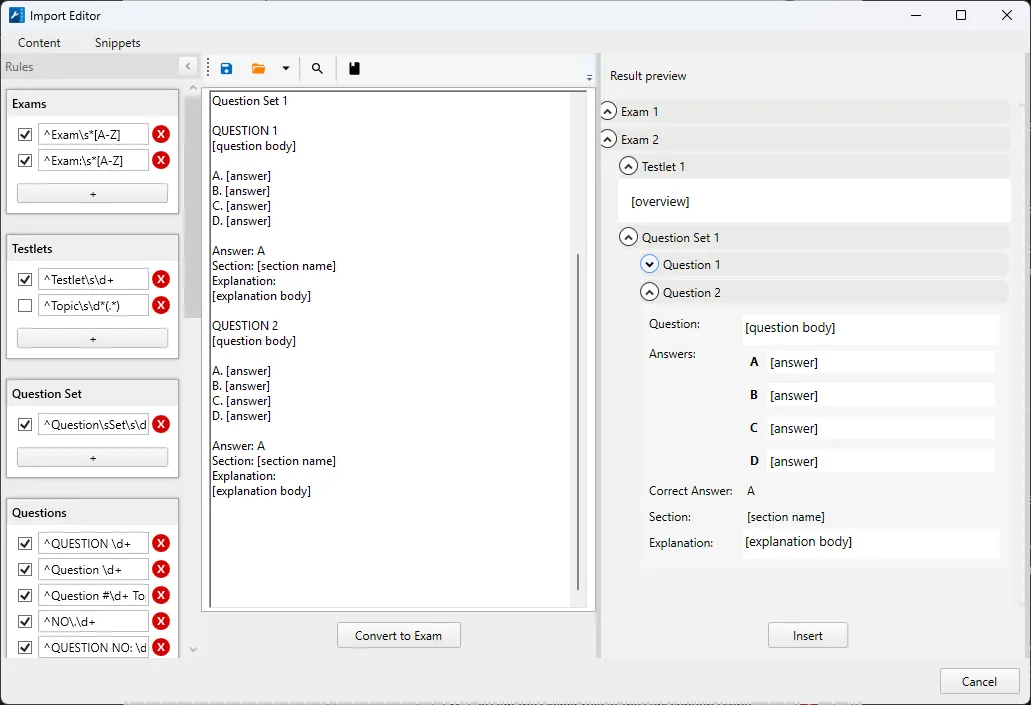
The editor turns plain text into test questions. It looks for familiar markers in the text — "QUESTION 1", "A.", "Answer:", "Explanation:" and so on — and uses them to find where a question starts, where the answer options are and which answer is correct.
Workflow
- Load the text. Paste it into the left field (
Ctrl+V) or open a file with the open button: - Open TXT File... — a text file; - Open RTF File... — an RTF file (formatting and images are preserved); - Open PDF File (Quick Version)... and Open PDF File (Standard Version)... — two ways of reading a PDF. Start with the quick one. If the text is recognized poorly, try the standard one. - Check the markup. The text must follow the format shown below. Fix it right in the editor if needed. A search panel is available for find and replace.
- Click Convert to Exam. The application parses the text. Progress is shown at the bottom: "Step 1 of 3 — Exams: … Questions: … Images: …".
- Check the result in Result preview on the right: how many exams, question sets and questions were found and whether the answers were detected correctly.
- Click Insert. The recognized exams are added to the current test. If a question has a section that does not exist in the test yet, the section is created.
You can save the prepared text (Content → Save, Ctrl+S) and open it later (Content → Open, Ctrl+O). Content → New (Ctrl+N) clears the editor.
Text format
An example of text the editor recognizes by default:
Exam A

Question Set 1

QUESTION 1
Which port does HTTPS use by default?

A. 21
B. 80
C. 443
D. 8080

Answer: C
Section: Networking
Explanation:
HTTPS uses port 443 by default.

QUESTION 2
Which protocols operate at the transport layer? (Choose two.)

A. TCP
B. IP
C. UDP
D. HTTP

Answer: AC
Section: Networking
Explanation:
TCP and UDP are transport layer protocols.
What the markers mean:
| Marker | What is recognized |
|---|---|
Exam A |
Start of a new exam |
Question Set 1 |
Start of a question set |
Testlet 1 |
Start of a testlet. The text after the marker up to the first question is the case description (Overview) |
QUESTION 1 |
Start of a question. The text before the answer options is the question text |
A. B. C. ... |
Answer options |
Answer: C |
Correct answer. If several letters are given (AC), the question becomes Multiple Choice |
Section: |
The question's section |
Explanation: |
Explanation. All text after the marker up to the next question |
The Exam, Question Set and Section markers are optional: without them, questions go to the default exam and question set.
The Snippets menu inserts a ready-made template of an exam (Exam), testlet (Testlet), question set (Question Set) or question (Question) into the text.
💡 Only Single Choice and Multiple Choice questions are recognized from text. For other question types, open the questions after inserting and change their type with Change Type....
Recognition rules (Rules)
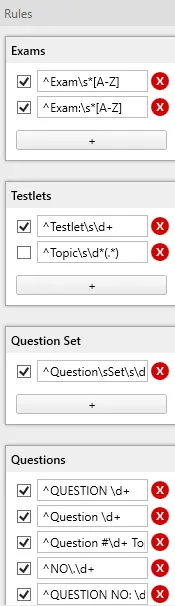
Texts from different sources use different markup: "QUESTION 1", "Question #12", "NO.5", "Q3:" and so on. Rules let the editor understand these variations. The Rules button shows and hides the rules panel.
Rules are divided into groups:
| Group | What it finds | Default examples |
|---|---|---|
| Exams | Start of an exam | Exam A, Exam: A |
| Testlets | Start of a testlet | Testlet 1 |
| Question Set | Start of a question set | Question Set 1 |
| Questions | Start of a question | QUESTION 1, Question 1, Question #1, NO.1, QUESTION NO: 1, Q1:, NEW QUESTION 1 |
| Answers | Answer option | A., B. |
| Sections | Section | Section: |
| Correct Answer | Correct answer | Answer:, Answers:, Correct Answer:, Answer(s): |
| Explanations | Explanation | Explanation: |
Each rule can be turned on or off with a checkbox, and you can add a new one (New rule) or delete one (Delete rule).
Rules are written as regular expressions. For example, the rule ^Task \d+ matches the lines "Task 1", "Task 25". ^ means the start of a line, \d+ means one or more digits.
Importing from JSON
Useful when questions were prepared by another application or a script.
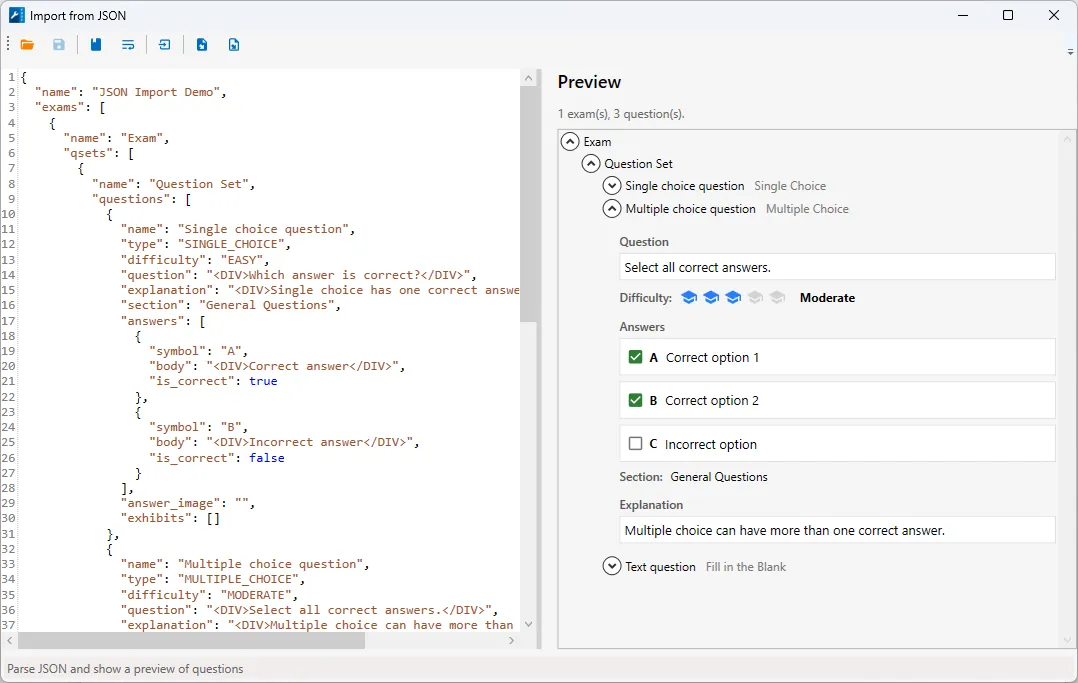
Open File → Import JSON... (Ctrl+Alt+J).
- Open a
.jsonfile with the open button or paste JSON text into the editor. - Click the preview button (Parse and show preview) and check the result on the right.
- Click: - Insert into test — add the questions to the current test and close the window; - Add to current test — add the questions and keep the window open to import more.
The Insert demo JSON snippet button inserts an example with questions of different types. Start with it to see the format. A shortened example:
{
  "name": "JSON Import Demo",
  "exams": [
    {
      "name": "Exam",
      "qsets": [
        {
          "name": "Question Set",
          "questions": [
            {
              "name": "Question 1",
              "type": "SINGLE_CHOICE",
              "difficulty": "EASY",
              "question": "<DIV>Which answer is correct?</DIV>",
              "explanation": "<DIV>Explanation text.</DIV>",
              "section": "General Questions",
              "answers": [
                { "symbol": "A", "body": "<DIV>Correct answer</DIV>", "is_correct": true },
                { "symbol": "B", "body": "<DIV>Incorrect answer</DIV>", "is_correct": false }
              ]
            }
          ]
        }
      ]
    }
  ]
}
Adding questions from another file
File → Add Questions from File... adds all exams and questions from another .vcex file to the open test. Afterwards, the application reports how many questions and exams were added.
This only works with files in the current format. If the file is old, the application asks you to open and re-save it first.