Free screen recorder for Windows

Record your screen, your audio, and every important click

Choose a monitor, capture microphone and system sound, make pointer actions easier to follow, and trim the finished MP4 - all in one focused Windows screen recorder.

Free Screen Recorder for Windows with monitor selection, microphone and system audio capture, mouse cursor options, and MP4 save folder

Everything essential, without a complicated production setup

Screen Recorder keeps the workflow deliberately simple: select what to capture, choose the audio sources, start recording, then trim and save the result.

Choose a display

Select the connected monitor and resolution you want to capture before recording begins.

Capture both audio sources

Record narration from a microphone together with sound produced by Windows.

Trim the result

Preview the recording, set new start and end points, and save a cleaner final video.

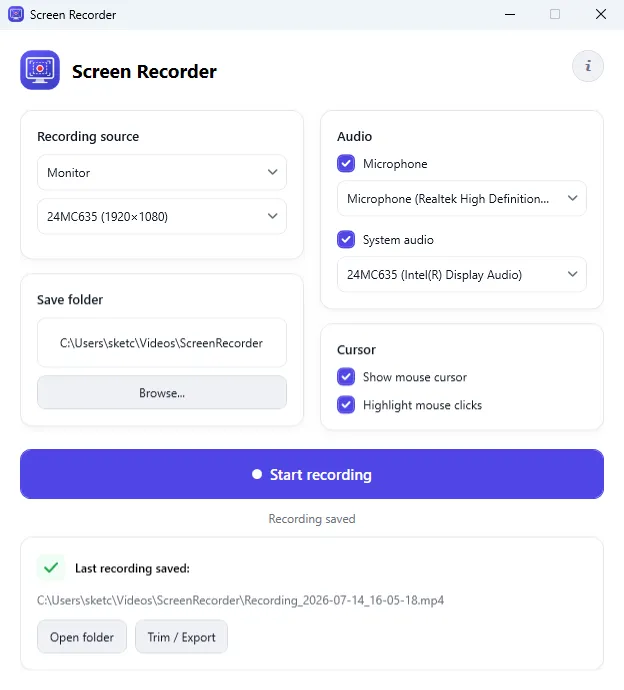
Windows screen capture source selection showing a connected Full HD monitor and recording controls
Monitor screen capture

Record the display you actually need

Choose the recording source and select a connected monitor from a clear list that includes its resolution. This makes setup predictable on both single-display workstations and multi-monitor desktops.

  • Connected monitor selection
  • Display resolution shown before recording
  • One clear action to start capture
  • Recording status visible in the main window
Microphone and system audio

Explain the action while preserving the original sound

Enable microphone and system audio independently, then select the appropriate input and playback devices. Capture spoken guidance, application sounds, media, and Windows audio in the same screen recording.

  • Optional microphone narration
  • Optional Windows system audio
  • Separate device selection for each source
  • Audio controls visible before capture starts
Screen Recorder audio settings with separate microphone input and Windows system audio device selection
Screen recording cursor controls for showing the mouse pointer and highlighting mouse clicks in tutorial videos
Mouse cursor visualization

Make on-screen instructions easier to follow

Keep the mouse pointer visible in the video and highlight clicks as they happen. Viewers can follow navigation and understand exactly which control was selected - useful for tutorials, demonstrations, support instructions, and bug reports.

  • Show or hide the mouse cursor
  • Optional mouse click highlighting
  • Clearer step-by-step demonstrations
  • Better context for software issues
Local MP4 recording

Know where every recording is saved

Select a destination folder before capture begins. When recording stops, the application shows the exact MP4 path and provides direct actions to open the containing folder or continue to trimming and export.

  • Custom output folder
  • MP4 video files saved locally
  • Last recording path shown immediately
  • One-click access to the saved file location
Screen Recorder showing a locally saved MP4 file with buttons to open its folder or trim and export the recording
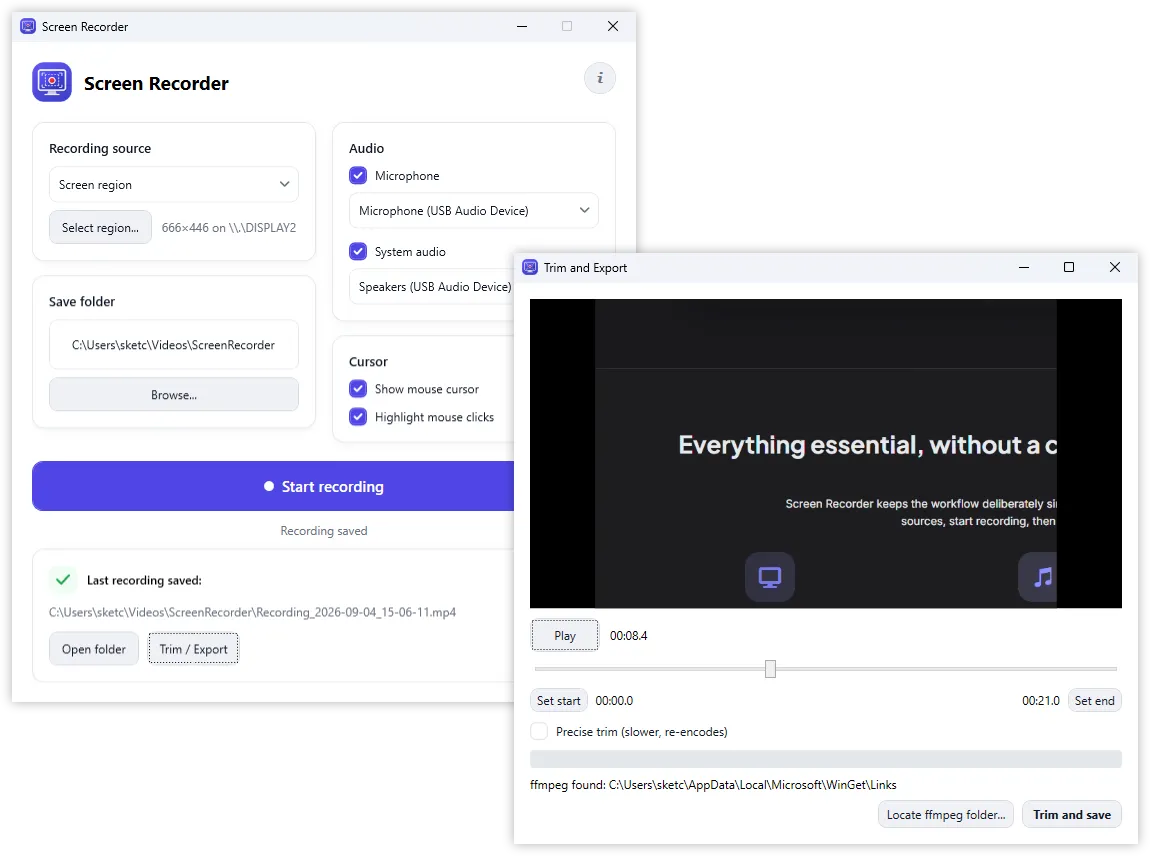
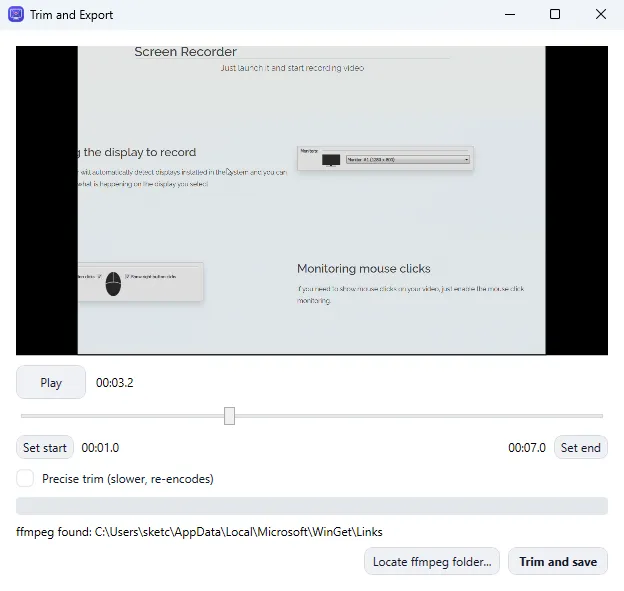
Built-in Screen Recorder video trimmer with preview, playback timeline, precise start and end points, and trim and save action
Built-in video trimming

Remove the wait before the action and the pause after it

Open the latest capture in the built-in preview, play it back, and position the timeline at the useful content. Set exact start and end points, then save the shortened recording without moving the project into a full video editor.

  • Video preview and playback
  • Timeline-based start and end selection
  • Time values for accurate boundaries
  • Optional precise re-encoded trimming
Gallery

Interface Screenshots

Take a visual tour through the different panels and dashboards of Screen Recorder.

Screen Recorder v3 - Main window
Screen Recorder v3 - Trim and Export
Free Edition

Download Free Version

Completely free for personal and commercial usage. No licenses, sign-ups, or subscriptions required.

Screen Recorder

Free application for quickly recording what is happening on the screen into a video file.

  • Unlimited personal and commercial usage rights
  • 100% features fully unlocked (no limits, no watermarks)
  • Free lifetime updates and security patches
  • Offline-first execution (data stays fully private on your drive)
Download for Windows

Latest Studio Updates

Keep up with product announcements, new features, and development logs from our team.

Retake Incorrect, Correct, or Skipped Questions in ProfExam Simulator 10.21.6
July 9, 2026 ProfExam

Retake Incorrect, Correct, or Skipped Questions in ProfExam Simulator 10.21.6

New in ProfExam Simulator 10.21: retake incorrect, correct, skipped, or all exam questions directly from the results screen for more effective certification exam preparation.

Read Article
ProfExam Creator 10.2.2.495: Import questions from JSON - a new dedicated window
May 29, 2026 ProfExam

ProfExam Creator 10.2.2.495: Import questions from JSON - a new dedicated window

Import from JSON is a new window in ProfExam Creator 10.2.2.495 that lets you load questions from a JSON file directly into your exams - with a built-in editor, live preview, and flexible import options

Read Article
ProfExam Simulator 10.20.5 - What's New
May 14, 2026 ProfExam

ProfExam Simulator 10.20.5 - What's New

A focused update packed with usability improvements - faster navigation, full keyboard control, flexible answer styles, and long-requested fixes for macOS and Linux users.

Read Article