Test Structure
A test in ProfExam Creator is organized as a tree:
Test (.vcex file)
├── Exam A                      — exam
│   ├── Question Set 1          — question set
│   │   ├── Question 1
│   │   └── Question 2
│   └── Testlet 1               — case: description + questions about it
│       ├── Question 3
│       └── Question 4
├── Exam B
│   └── ...
├── Sections                    — question sections (topics)
└── Difficulty                  — questions grouped by difficulty level
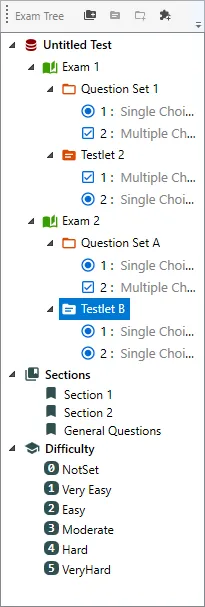
Above the tree are quick-create buttons: New Exam, New Question Set, New Testlet, New Question.... The same commands are available in the context menu (right-click) of tree items.
Test
The test is the whole document, one .vcex file. It can contain several exams.
Test properties
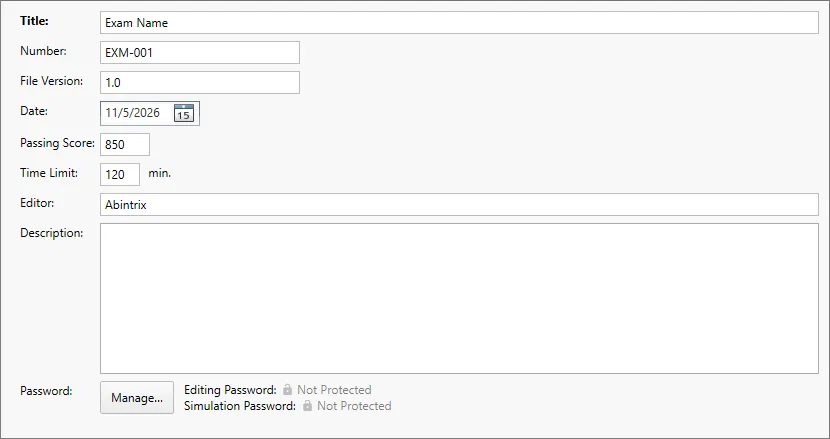
Click the test (the top item in the tree) to open its properties:
| Field | Purpose |
|---|---|
| Title | Test title |
| Number | Exam number or code (for example, a certification code) |
| Editor | Test author |
| Date | Date |
| File Version | File version |
| Passing Score | Passing score |
| Time Limit | Time limit, in minutes |
| Description | Test description. You can format the text and insert images |
| Password | Password protection, the Manage… button (see Passwords) |
Exam
An exam is a set of questions within the test. For example, one test can contain several exam variants: Exam A, Exam B.
- Add: right-click the test → New Exam, or the New Exam button above the tree.
- Rename: select the exam in the tree and press
F2. Question sets, testlets and sections are renamed the same way. - When you select an exam, the Exam Name field and a list of all its questions are shown.
Exam context menu:
- New Question Set — add a question set;
- New Testlet — add a testlet;
- Renumber Questions — renumber the exam's questions in order;
- Save As... — save this exam to a separate
.vcexfile; - Delete (
Del) — delete the exam.
Question Set
A regular container for questions. An exam can have several question sets.
- When you select a question set, the Group Name field and the list of its questions are shown.
- Context menu: New Question..., Paste, Renumber Questions, Save As..., Delete. In the New Question... submenu you can choose the question type right away.
Testlet (case study)
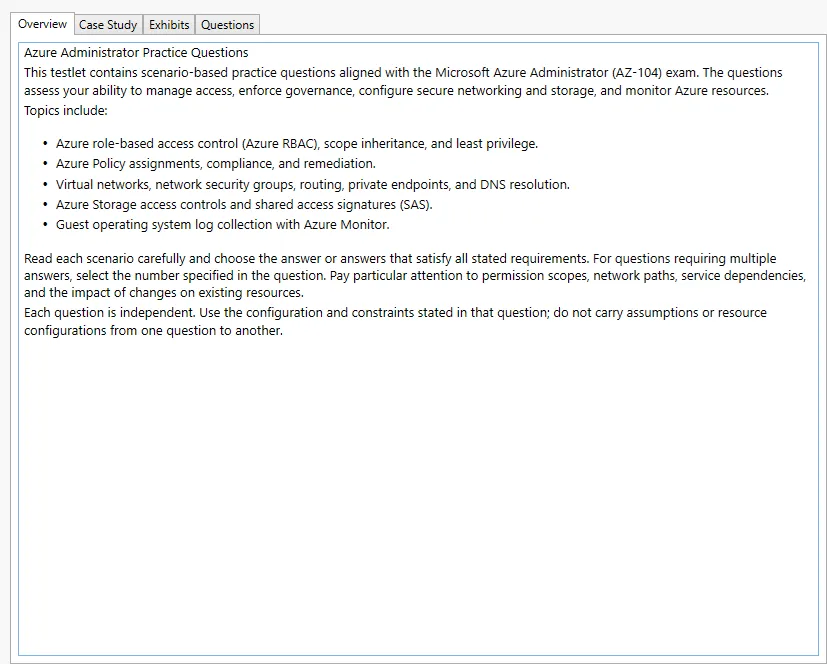
A testlet is a group of questions based on a common scenario (case). The candidate first reads the description, then answers the questions about it.
When you select a testlet, the Testlet Name field and these tabs are shown:
- Overview — the general description of the case;
- Case Study — the case pages. The Create Page and Create Folder buttons add a page or a folder for pages. A page has a title (Title) and content (Content);
- Exhibits — additional materials (images) for the case;
- Questions — the list of the testlet's questions.
Sections
A section is the topic or knowledge area a question belongs to. For example: "Networking", "Security", "Storage". Sections are shared by the whole test. A new test has the General Questions section.
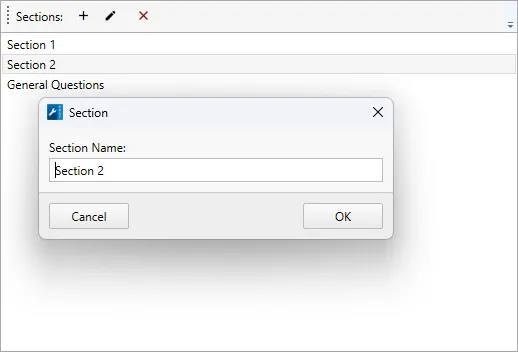
Click the Sections node in the tree to manage sections:
- Add Section — add a section;
- Edit — rename the selected section;
- Delete Selected — delete the selected sections. The last section cannot be deleted: a test always has at least one.
A question's section is chosen in the Section field on the question page. If you select a section in the tree, a list of all its questions opens.
Difficulty levels
Each question can have a difficulty level set in the Difficulty field:
| Level | Meaning |
|---|---|
| Not Set | Not specified |
| Very Easy | Basic knowledge, simple facts, no reasoning required |
| Easy | Slightly more than basic, but still straightforward |
| Moderate | Requires understanding of the topic and some reasoning |
| Hard | Analysis, connections between concepts, problem-solving |
| Very Hard | Complex tasks that demand deep understanding of the topic |
The Difficulty node in the tree shows how many questions are at each level. Select a level to open the list of its questions.
Question list
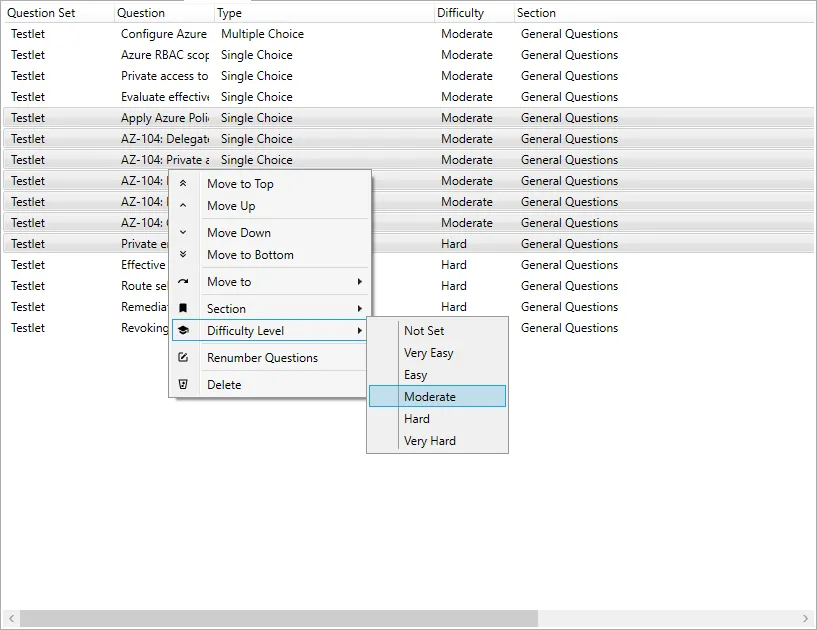
When you select an exam, question set, testlet, section or difficulty level, a question table opens with the columns Question, Type, Question Set, Section, Difficulty.
In the table you can select several questions (Ctrl or Shift + click) and use the context menu:
- Move to → Move to Top / Move Up / Move Down / Move to Bottom — change the order;
- Section — assign a section to all selected questions at once;
- Difficulty Level — assign a difficulty level;
- Renumber Questions — renumber;
- Delete — delete the selected questions.
You can also change the order by dragging rows with the mouse.