Hot Point
The candidate must mark the correct spot on an image.
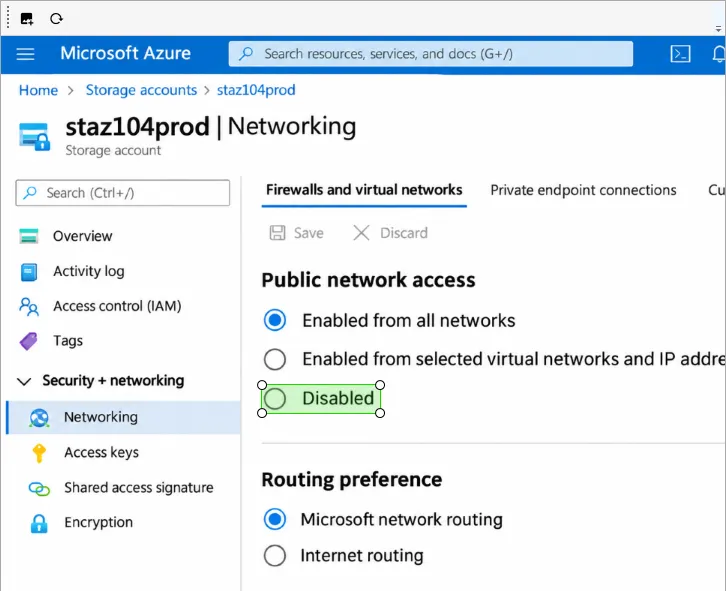
- Click the button with an image and a "+" sign and choose a picture. You can also right-click an image in the question text → Set as Answer Background.
- An answer area frame appears on the image. Drag it to the correct spot and resize it by its edges.
- The button with a circular arrow returns the frame to its initial position.
The answer counts as correct if the candidate clicks inside the frame.
The common fields of the question page (text, exhibits, explanation, section, difficulty) are described in Question page.