License and Activation
Activation
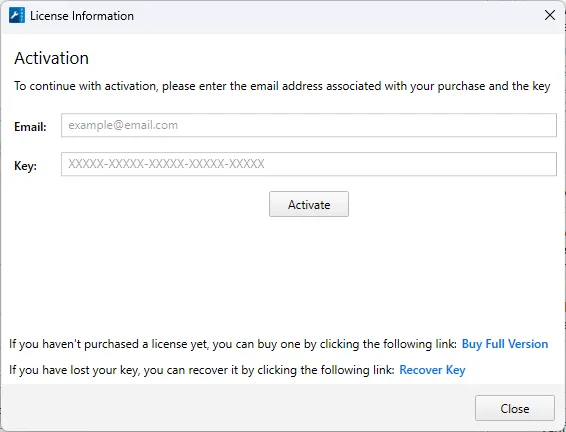
After purchase, you receive a license key. To activate the application:
- Click the Activate button in the top right corner of the window or choose Help → Activate. In the trial window, use the Enter License Key button.
- Enter your Email — the address used for the purchase.
- Enter the Key — a key in the form
XXXXX-XXXXX-XXXXX-XXXXX-XXXXX(letters A–Z and digits). - Click Activate.
Activation requires an internet connection.
Possible errors
| Message | What to do |
|---|---|
| Key not found | Check that the email and key are entered correctly |
| Invalid key format | The key must consist of 5 groups of 5 characters separated by hyphens |
| Unable to connect to the activation server | Check your internet connection and try again |
| Your subscription has expired | Your subscription has ended — renew it with the Renew Subscription link |
| This license key is valid for an earlier version | The key only works with an older version of the application — upgrade your license |
| The activation limit for this key has been reached | The key is already activated on the maximum number of computers. A list of activations opens — deactivate a computer you no longer use (Deactivate) |
Lost key
Click the Recover Key link in the activation window — the key recovery page on the website opens.
License information
Help → License Information... shows who the application is registered to (Licensed to), the email and the expiration date (Expiration date). For a perpetual license, None (Lifetime License) is shown.
Deactivation
If you no longer plan to use the application on this computer (for example, you are moving to a new one), deactivate it to free the activation for another computer:
- Open Help → License Information....
- Click Deactivate and confirm.
After deactivation, the application works as a trial version on this computer. You can activate it again at any time.
Updates
When a new version is released, an update icon (New version available) appears in the top right corner of the window. Click it to install the new version.