Hot Area
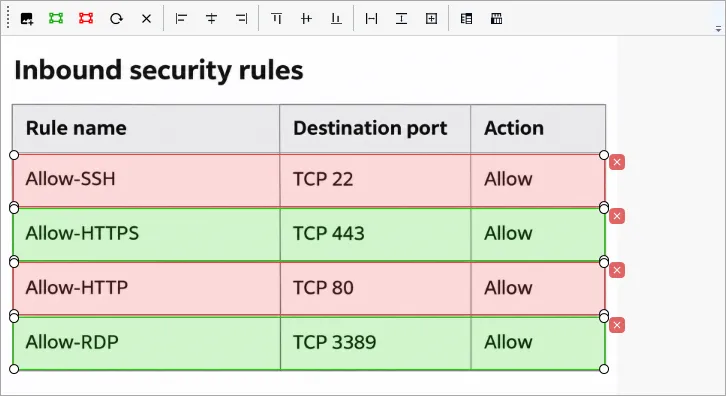
Several areas are marked on an image. The candidate selects the correct ones.
- Load an image with Load Image (or via Set as Answer Background).
- Add Correct Answer — add a correct area.
- Add Incorrect Answer — add an incorrect area (a distractor).
- Drag the areas to the right places and adjust their size.
For neat layout, select several areas (Ctrl + click) and use the alignment buttons:
- Align Lefts / Centers / Rights / Tops / Middles / Bottoms — align edges or centers;
- Make Same Width / Height / Size — make the same width, height or size;
- Arrange: Right / Bottom — arrange in a row or a column;
- Delete Selected Areas — delete the selected areas;
- Reset All Answers — delete all areas.
The common fields of the question page (text, exhibits, explanation, section, difficulty) are described in Question page.