Passwords
A test can be protected with two passwords. Open the test properties (the top item in the tree) and click Manage… in the Password block.
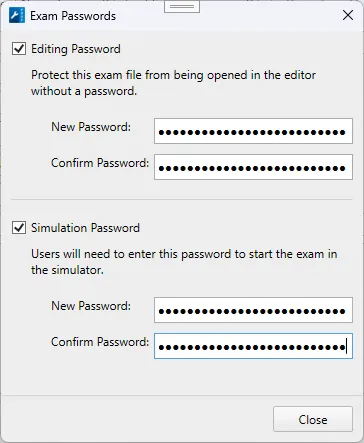
| Password | What it protects |
|---|---|
| Editing Password | Opening the file in ProfExam Creator. Without the password, the test cannot be opened for editing |
| Simulation Password | Starting the exam in ProfExam Simulator. Without the password, the candidate cannot start the test |
To set a password, type it in the New Password field and repeat it in the Confirm Password field. The Password block in the test properties shows which passwords are set: Protected or Not Protected.
⚠️ Remember the editing password. Without it, you cannot open the file in the editor.