Printing
File → Print... (Ctrl+P) or the toolbar button.
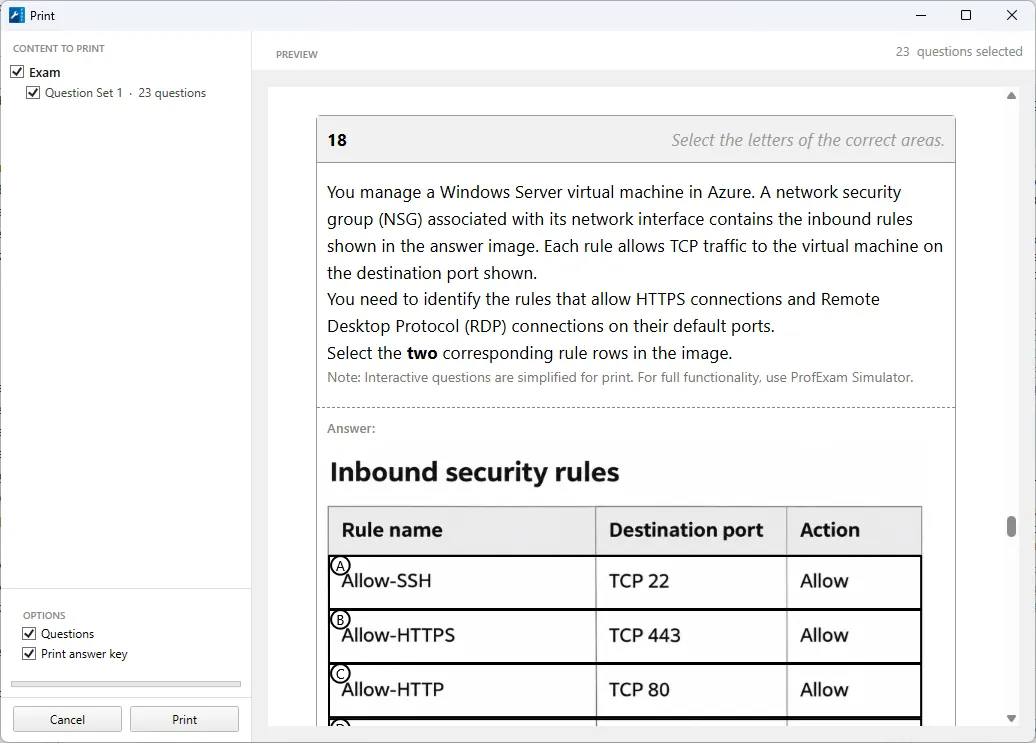
- In the CONTENT TO PRINT block, check the exams and question sets you want to print. The number of selected questions is shown at the bottom.
- In the OPTIONS block, choose what to print: - Questions — pages with the questions; - Print answer key — append pages with the correct answers to all questions (Answer Key).
- Check the result in PREVIEW on the right. While the preview is being prepared, Please Wait... is shown in its header.
- Click Print.
Interactive questions (Hot Area, Drag & Drop and others) are printed in a simplified form. To take them in full, use ProfExam Simulator.
The preview requires the Microsoft Edge WebView2 component. If it is missing, the application offers to download it. After installing it, restart ProfExam Creator.
⚠️ In the trial version, a watermark is added to printed pages.