Working with Questions
Adding questions
Questions are added to a question set or a testlet.
- Select a question set, a testlet or a question inside them.
- Click New Question... above the tree or in the context menu.
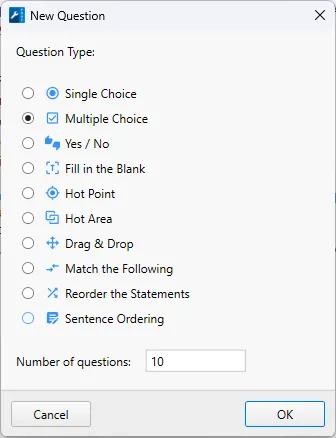
- In the New Question window, choose the question type (Question Type) and the number of questions (Number of questions).
- Click OK.
Quick way: in the question set's context menu, open the New Question... submenu and choose the type right away.
Question page
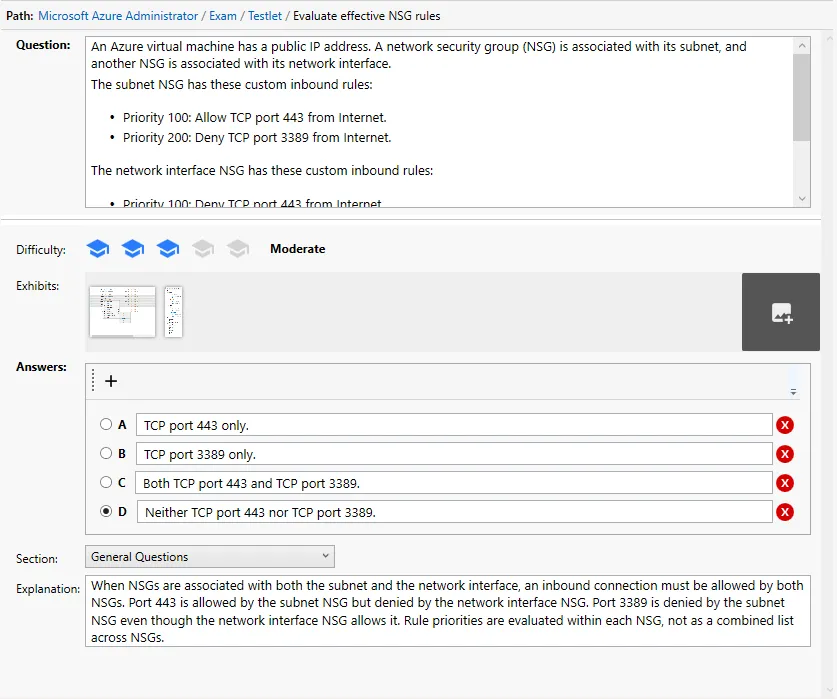
The page has the same layout for all question types:
| Field | Purpose |
|---|---|
| Question | The question text. You can format it and insert images |
| Answers | Answer options and the correct answer. Depends on the question type (see Question Types) |
| Exhibits | Additional materials for the question: diagrams, tables, screenshots (see Exhibits) |
| Explanation | Explanation of the correct answer. The candidate sees it after answering |
| Section | The question's section (topic) |
| Difficulty | Difficulty level |
If a question is incomplete (for example, no correct answer is marked), its name in the tree is highlighted in color.
Navigating between questions
- The arrow buttons on the toolbar or
Alt+←/Alt+→— previous and next question. - Click a question in the tree.
Copy, cut, paste
Question context menu in the tree:
- Copy — copy the question;
- Cut — cut;
- Paste — paste the copied question before the selected one. From the context menu of a question set or testlet, the question is pasted into that set;
- Delete (
Del) — delete the question.
Moving questions
- Within a question set — open the question set's list and use Move to → Move Up / Move Down / Move to Top / Move to Bottom, or drag rows with the mouse.
- To another question set — drag questions from the list onto the target question set or testlet in the tree.
- A question set to another exam — drag the question set in the tree onto another exam.
After rearranging, use Renumber Questions so that the question numbers are in order again.
Changing the question type
Right-click the question → Change Type... → choose the new type. After changing the type, check the answer options and set them up again if needed: different types have a different answer structure.
If the question type is not defined (for example, after an import), the question page shows the Specify the question type hint — choose the type with Change Type....
Search
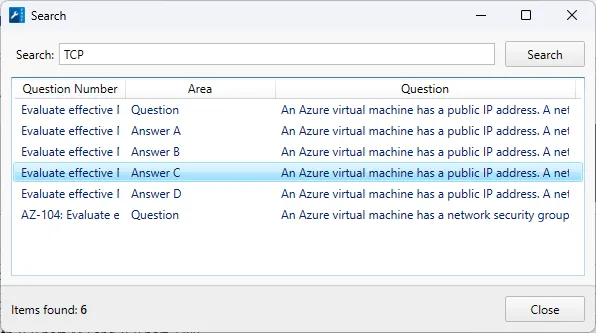
Document → Search... (Ctrl+F) — search for text in all questions of the test. The results show the question number and where the text was found (Area). Click a row to open the question.