Making a Recording
Starting a recording
- Set up the source, audio, and cursor options.
- Click Start recording.
If the button is disabled, a setting is missing — for example, no region or window is selected, or audio is enabled but no device is chosen (see Troubleshooting).
After you click it, the main window hides and a small recording control panel appears in the top-right corner of the screen.
Recording control panel
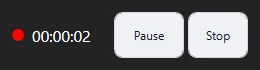
The panel shows:
- A red dot and a timer — how long the recording has been running (hours:minutes:seconds).
- Pause — temporarily pauses the recording. The button changes to Resume and the timer stops.
- Resume — continues recording into the same file.
- Stop — finishes the recording and saves the file.
The panel does not appear in the video. Only you can see it, so you can leave it where it is even when recording the full screen.
Finishing a recording
Click Stop. The app finalizes the file (the status line shows “Stopping recording...”), and then the main window reappears.